Hey everybody! Thank you for purchasing your Drop Mechanical Keyboard. We hope you’re enjoying it so far. If you’ve landed here, you probably want to take full advantage of the keyboard’s features so you’ve come to the right place. We’ll start with the basics, then we’ll move on to complete custom configuration.
THE BASICS
Default Hot Keys - All Drop V2 keyboards, SENSE75, CSTM65 and CSTM80
Hold FN + listed keys to activate
LED Keys
Fn + W: LED Brightness Increase
Fn + S: LED Brightness Decrease
Fn + E: LED Animation Speed Increase
Fn + D: LED Animation Speed Decrease
Fn + R: LED Hue Increase
Fn + F: LED Hue Decrease
Fn + T: LED Saturation Increase
Fn + G: LED Saturation Decrease
Fn + Q: LED Toggle (All, Keys, Edge, Off)
Fn + A: LED Next Pattern
Fn + Z: LED Mono Color Mode
Fn + X: LED Breathing Effect
Fn + C: LED Rainbow Mode
Fn + V: LED Rainbow Pinwheel Mode
Keyboard Option Keys
Fn + N: Toggle keyboard 6KRO/NKRO (Default state 6KRO)
Fn + LCtrl + O: Windows / Mac OS Swap (System / Alt location change)
Fn + LCtrl + |\: LCtrl / Capslock Swap
Fn + LCtrl + Backspace: Reset Keyboard
Default Hot Keys - All Drop V1 Keyboards
Hold FN + listed keys to activate
LED Keys
Fn + A: LED Pattern - Select previous
Fn + D: LED Pattern - Select next
Fn + Q: LED Pattern - Decrease scrolling speed (for animating patterns)
Fn + E: LED Pattern - Increase scrolling speed (for animating patterns)
Fn + Caps Lock: LED Pattern - Change scrolling direction (left to right, right to left, bottom
to top, top to bottom, radial center to edge, radial edge to center)
Fn + W: LED - Increase brightness
Fn + S: LED - Decrease brightness
Fn + Tab: LED - Toggle breathing effect
Fn + X: LED - Toggle all LEDs off/on
Fn + Z: LED - Toggle mode (keys + edge, keys only, edge only, all off)
Fn + R: LED - Increase brightness of edge LEDs only (up to brightness of keys
LEDs)
Fn + F: LED - Decrease brightness of edge LEDs only
Fn + V: LED - Toggle every other edge LED off
Media Keys
Fn + Page Up: Volume Up
Fn + Page Down: Volume Down
Fn + Print: Mute
Fn + Insert: Play/Pause
Fn + Home: Stop
Fn + Delete: Previous
Fn + End: Next
Keyboard Option Keys
Fn + N: Toggle keyboard 6KRO/NKRO (Default state 6KRO)
Flashing
Fn + B (hold for three seconds then release): Put keyboard into firmware flashing mode (also referred to as “resetting the keyboard”)
CONFIGURING YOUR KEYBOARD 1. Download the Drop Keyboard Configurator application.
- If you use Windows, download here.
- If you use a Mac, download here.
2. Launch the Drop Keyboard Configurator application. After the application launches, make sure your keyboard is identified and then click Configure Keyboard. If you are using a CTRL V2, ALT V2, or SHIFT V2 keyboard, your keyboard will be recognized right out of the box. If you are using a SENSE75, CTRL V1, ALT V1, or SHIFT V1, first go to the "FLASHING YOUR KEYBOARD" section below."
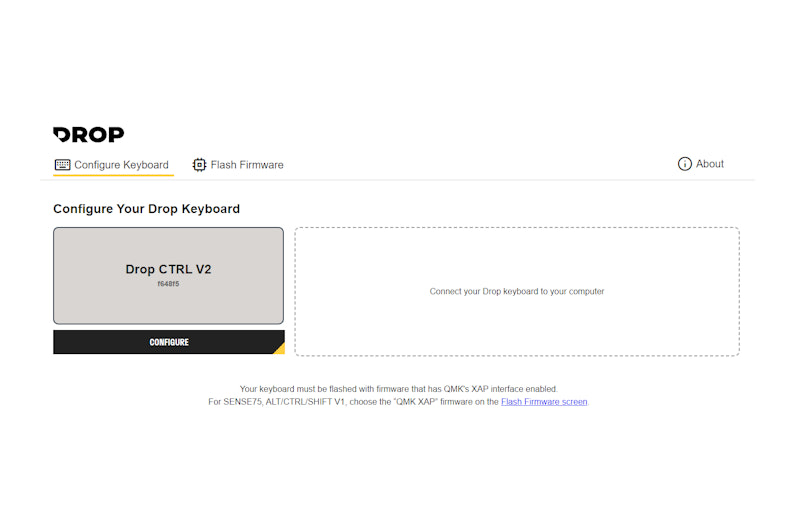
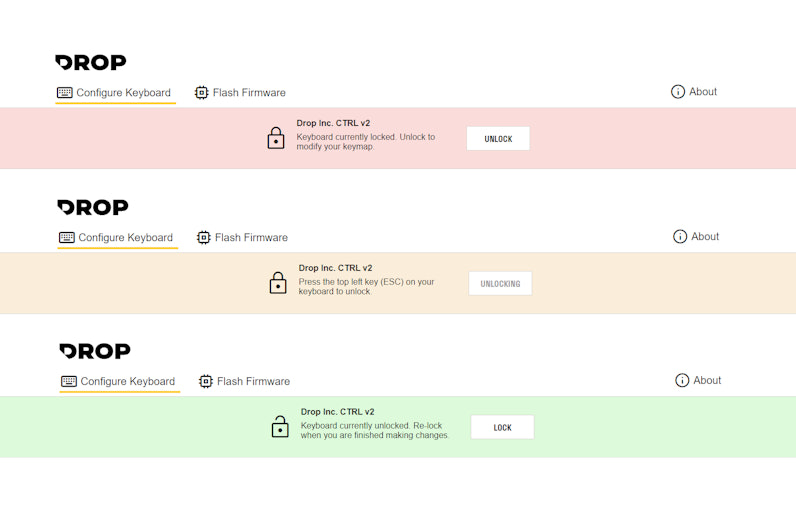
3. Press unlock and then press ESC on your keyboard to unlock configuration. Please remember to relock your keyboard after you are done making changes. Note: your keyboard will automatically re-lock 5 minutes after the configurator app is closed.
4. You can now make changes to your keyboard on the fly including changing key binds, LED settings and layers.
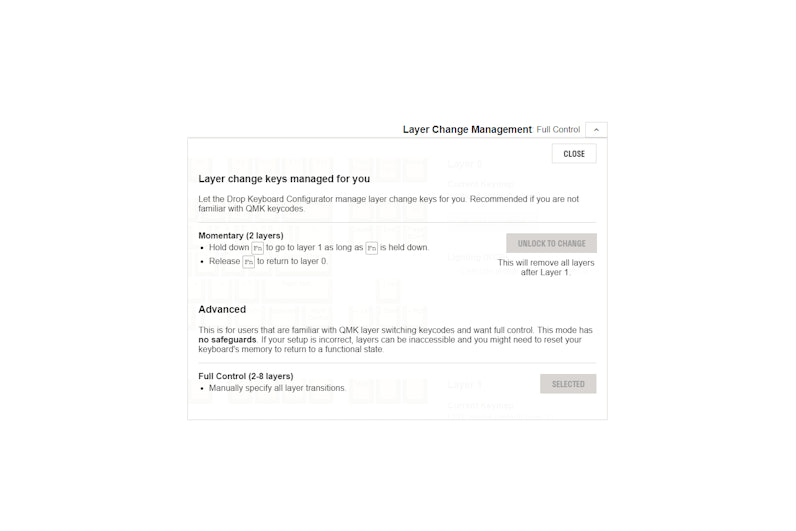
- By default the keyboard will be set to Advanced mode with no safeguards. Remember with layers to always create ways to return to your home layer
- Momentary mode is also available for those looking for some customization with guardrails.
- Remember Boot Magic is always available to wipe your EEPROM and reset the keyboard back to factory settings.
- You can access Boot Magic by holding down the ESC key while your keyboard is disconnected.
- While holding down the ESC key, plug in your keyboard.
Once connected you can let go of the ESC key and the keyboard should be reset.
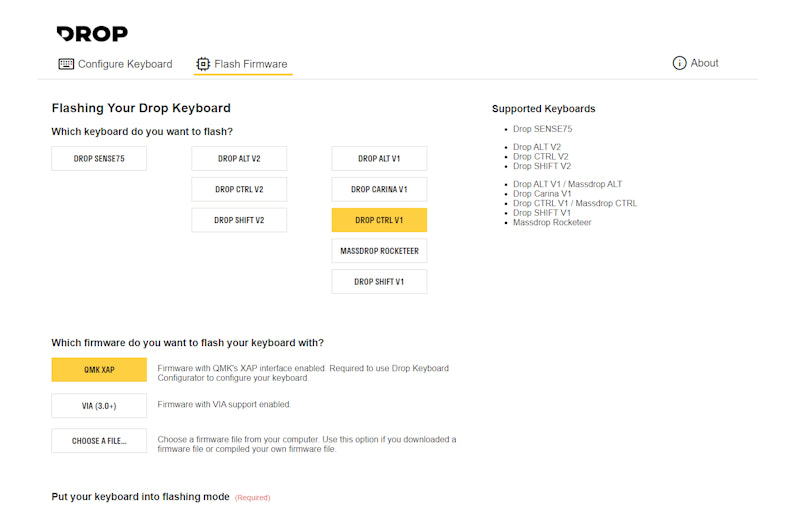
FLASHING YOUR KEYBOARD 1. Launch the Drop Keyboard Configurator application. After the application launches, click “Flash Firmware”.
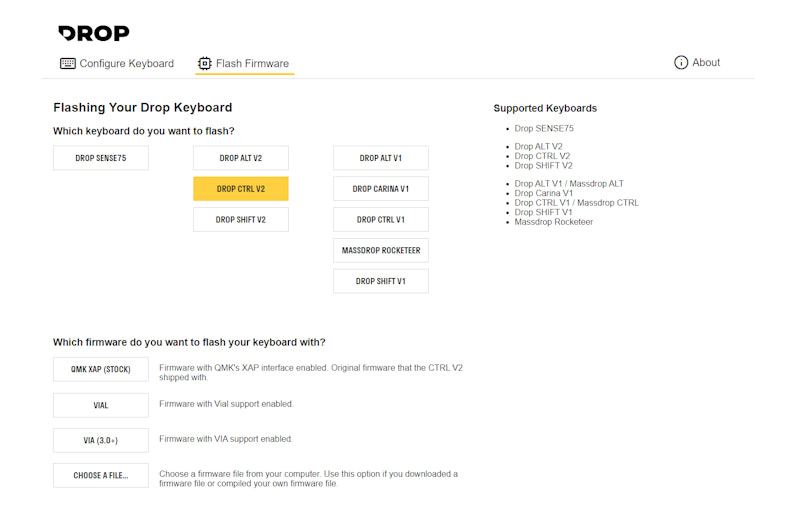
2. Follow the flashing instructions in the application. It will instruct you to select the desired firmware file followed by resetting your keyboard. 3. If you are using a SENSE75, CTRL V1, ALT V1, or SHIFT V1 keyboards. You must select and flash QMK XAP in order to configure your keyboard with the Drop Keyboard Configurator application.
Comments
Article is closed for comments.