Hey everybody! Thank you for purchasing your Drop ALT Mechanical Keyboard. If you’ve landed here, you probably want to take full advantage of the keyboard’s features, so you’ve come to the right place. We’ll start with the basics, then we’ll move on to complete custom configuration.
THE BASICS
Default Hot Keys
Hold FN + listed keys to activate
LED Keys
Fn + A: LED Pattern - Select previous
Fn + D: LED Pattern - Select next
Fn + Q: LED Pattern - Decrease scrolling speed (for animating patterns)
Fn + E: LED Pattern - Increase scrolling speed (for animating patterns)
Fn + Caps Lock: LED Pattern - Change scrolling direction (left to right, right to left, bottom to top, top to bottom, radial center to edge, radial edge to center)
Fn + W: LED - Increase brightness
Fn + S: LED - Decrease brightness
Fn + Tab: LED - Toggle breathing effect
Fn + X: LED - Toggle all LEDs off/on
Fn + Z: LED - Toggle mode (keys + edge, keys only, edge only, all off)
Fn + R: LED - Increase brightness of edge LEDs only (up to brightness of keys LEDs)
Fn + F: LED - Decrease brightness of edge LEDs only
Fn + V: LED - Toggle every other edge LED off
Media Keys
Fn + Page Up: Volume Up
Fn + Page Down: Volume Down
Fn + Delete: Mute
Function Keys
Fn + 1: F1
Fn + 2: F2
Fn + 3: F3
Fn + 4: F4
Fn + 5: F5
Fn + 6: F6
Fn + 7: F7
Fn + 8: F8
Fn + 9: F9
Fn + 0: F10
Fn + - : F11
Fn + = : F12
Other Keys
Fn + P: Print Screen
Fn + [ : Scroll Lock
Fn + ] : Pause
Fn + Left Arrow: Home
Fn + Right Arrow: End
Fn + Up Arrow: Page Up
Fn + Down Arrow: Page Down
Fn + Escape: Backtick ( ` )
Fn + Shift + Escape: Tilde ( ~ )
Keyboard Option Keys
Fn + N: Toggle keyboard 6KRO/NKRO (Default state 6KRO)
Flashing
Fn + B (hold for three seconds then release): Put keyboard into firmware flashing mode (also referred to as “reseting the keyboard”)
CUSTOM CONFIGURATION
How do I configure my keyboard? 1. Create your keyboard configuration and compile it into a firmware file. For this, you can use our web-based configurator tool: https://drop.com/mechanical-keyboards/configurator . See “Drop Keyboard Configurator” section below for more information. If you are comfortable with programming and working with QMK code, you can manually create and compile your configuration by checking out our fork of the QMK repository: https://github.com/Massdrop/qmk_firmware/tree/feature/riot_xap . Our keyboards are under the “keyboards/drop” folder, e.g. “keyboards/drop/alt”. As of August 2022, our fork uses features and keyboard support that have not yet merged to the main QMK repository. For additional details, see this comment: https://drop.com/talk/9382/how-to-configure-your-ctrl-keyboard/2898139 . 2. Flash the firmware file onto your keyboard. This will copy the firmware into your keyboard’s memory. See the “Flashing Your Keyboard” section below.
DROP KEYBOARD CONFIGURATOR
https://drop.com/mechanical-keyboards/configurator When you first go to the configurator, you will be prompted to choose your keyboard. After choosing, you will see a top-down view of the keyboard and a layer selector on the right side. By clicking on a key, you can customize its behavior by selecting another key or function in the panel that appears below the keyboard. The currently available behaviors are: - Keys - Individual keys such as letters, numbers, media keys, and function keys. - Layer - Activate and deactivate layers. The ALT Keyboard ships with a keymap where the Fn key activates layer 1. - Modifier - Send multiple modifiers with a single key press or allow a key to be a modifier when held and another key when tapped. - Special - Behaviors specific to the keyboard. For the ALT Keyboard, these control the LEDs. After you have configured the behaviors to your liking, click the "Compile & Download" button in the top right to download the compiled firmware for your configuration. This typically takes around 30 seconds. You will need to load this compiled firmware file onto your keyboard. See the “Flashing Your Keyboard” section below. If you click the arrow next to the “Compile & Download” button, you will be able to customize the version of the compiled firmware. The “Modern” version is set as default and recommended for all users. If you are logged in to Drop, you will see a "Save as a New Copy" button next to the "Compile & Download" button. Clicking this button will save your configuration, allowing you to revisit it and modify it. The next time you go to the configurator, you will see your saved configurations above the list of keyboards. About Layers Layers allow you to configure your keyboard with more behaviors than its number of physical keys. For example with the ALT Keyboard, by default, when you hold Fn + A to change the LED pattern, the keyboard is actually activating Layer 1 and sending the code for switching to the previous LED pattern. The physical key that is mapped to the letter A on Layer 0 is mapped to changing LED patterns on Layer 1.
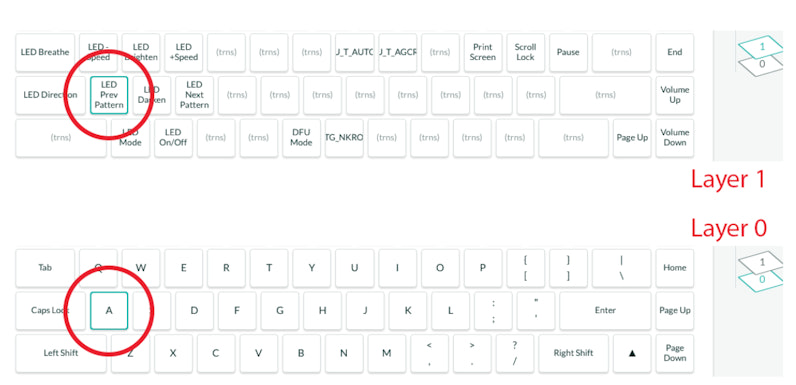
For each key, its behavior is determined by the highest active layer. For the highest active layer, if the key's behavior is "transparent" (denoted by a grayed-out "(trns)" on the keyboard display), then it falls back to the next-highest layer where its behavior is not transparent. The QMK documentation has some tips for working with layers:https://docs.qmk.fm/#/feature_advanced_keycodes?id=working-with-layers
FLASHING YOUR KEYBOARD 1. Download the Drop Keyboard Configurator application.
- If you use Windows, download here: https://dro.ps/keyboard-configurator-windows
- If you use a Mac, download here: https://dro.ps/keyboard-configurator-mac
- If you use Linux or would like to continue using mdloader, download the appropriate loader application here: https://github.com/Massdrop/mdloader/releases . Then follow the instructions here: https://github.com/Massdrop/mdloader .
2. Launch the Drop Keyboard Configurator application. After the application launches, click “Flash Firmware”.
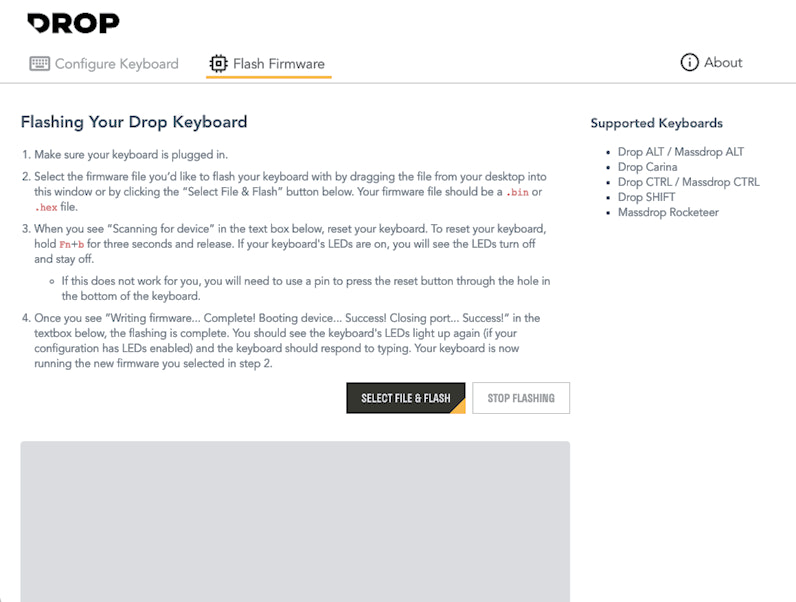
3. Follow the flashing instructions in the application. It will instruct you to select the desired firmware file followed by resetting your keyboard. Note: the Drop Keyboard Configurator application will automatically receive updates. We are currently working on adding configuration capabilities to the application.
Comments
Article is closed for comments.